
HTTP triggers for LEC3/SPI Matrix/REACTIVO
Http triggers allows you to control LED Ethernet Controller 3 (LEC3) or SPI Matrix using your web browser. It’s practical for automation and integration of pixel LED strips with another controllers (e.g. Shelly). You can use them to play content from SD card, thus you don’t need a computer to control your pixel LED installation.
You can test the commands using Chrome, Edge, Safari or any other web browser running on your PC, Mac or iPhone and Android. Just start your favorite web browser, make sure the LEC3/SPI Matrix are on the same local network as your PC/phone and type following address to web browser:
http://YOUR_DEVICE_IP_ADDRESS/SetAutoplay.html?COMMAND_TO_PERFORM
It might sound complicated, but it’s really easy. E.g. if your device uses IP address 192.168.1.147, to e.g. start scene 1 from SD card type in:
http://192.168.1.147/SetAutoplay.html?anim=1
The command anim=1 will order the device to start animation 1 from the SD card.
List of http commands #
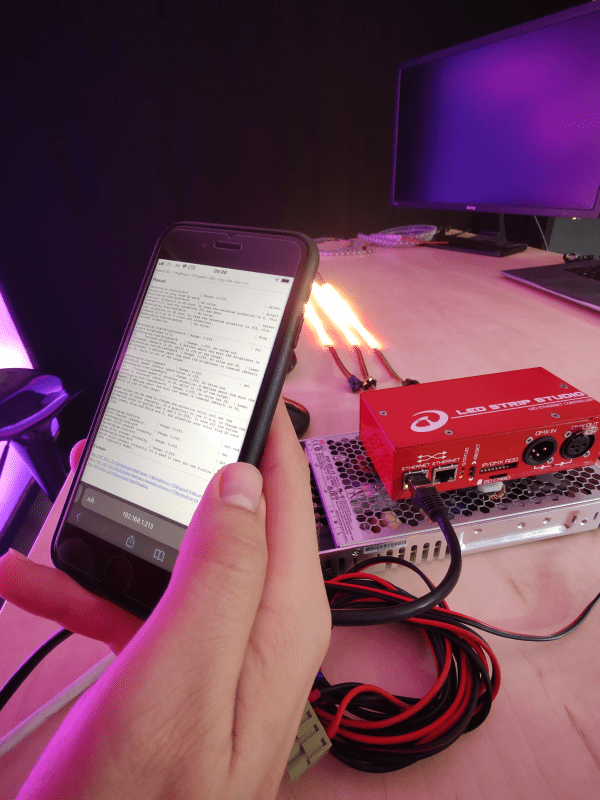
After you call some http command, you’ll get also web page with the list of available commands. Here is the example:
192.168.1.147/SetAutoplay.html?brighUp
[status] file = 4 brightness = 130 speed = 64 r = 0 g = 0 b = 0 w = 0 ;
Manual
SetAutoplay.html?anim=X | Range: 0-255. | Select animation to play from SD card.
SetAutoplay.html?prevAnim | No value. | Select previous animation on SD card. In case the selected animation is 0, this command will look for animation 255 and down.
SetAutoplay.html?nextAnim | No value. | Select next animation on SD card. In case the selected animation is 255, this command will go to 0 (turn off animation).
SetAutoplay.html?stopAnim | No value. | Stop current animation.
SetAutoplay.html?brightness=X | Range: 0-255. | Set output brightness to X.
SetAutoplay.html?brighUp=X | Range: 1-255. No value use 26. | Increase brightness. X defines about how much the brightness is increased (default is 26, which is 10% of the range).
SetAutoplay.html?brighDown=X | Range: 1-255. No value use 26. | Lower brightness. X defines about how much the brightness is lowered (default is 26, which is 10% of the range).
SetAutoplay.html?speed=X | Range: 0-255. | Set animation speed. Default speed value is 128.
SetAutoplay.html?speedUp=X | Range: 1-255. No value use 26. | Increase speed of selected animation. X defines about how much the speed is increased (default is 26, which is 10% of the range).
SetAutoplay.html?speedDown=X | Range: 1-255. No value use 26. | Lower speed. X defines about how much the speed is lowered (default is 26, which is 10% of the range).
RGBW values can be used to change the animation color (not set the intensity of color channels). It’s practical to use it e.g. to change the animation color to yellow (set R and G to 255). In case all the values Red, Green, Blue and White are 0, the animation uses color from SD card file.
SetAutoplay.html?r=X | Range: 0-255. | Set red color channel intensity.
SetAutoplay.html?g=X | Range: 0-255. | Set green color channel intensity.
SetAutoplay.html?b=X | Range: 0-255. | Set blue color channel intensity.
SetAutoplay.html?w=X | Range: 0-255. | Set white color channel intensity. It’s used in case you use 4-color channel LEDs (typically RGBW).
Examples
http://192.168.1.147/SetAutoplay.html?anim=10&brightness=159&speed=64&contrast=128
http://192.168.1.147/SetAutoplay.html?prevAnim&brightness=159&speedUp=64
http://192.168.1.147/SetAutoplay.html?brighUp
You can also see the explanation for every command in the list.
Typical usage examples #
The http commands can be used to control your pixel LED strips using external controllers, like:
Pixel LED control from your iPhone #
You can use iPhone’s default browser Safari to e.g. trigger different animations running on LEC3. For even more advanced users, you can use e.g. Shortcuts to create quick actions to trigger different scenes or change brightness of the animation.
Shelly #
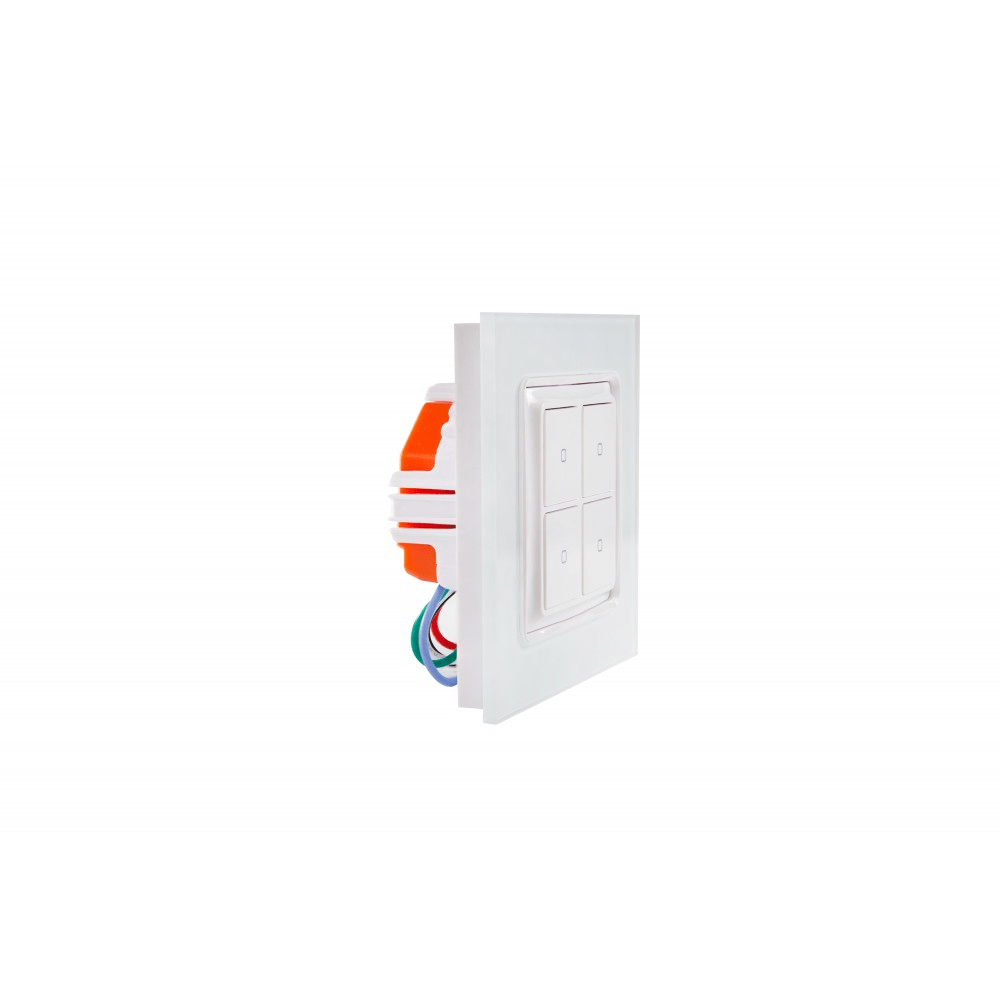
Very nice system, which allows you to use wall-mounted buttons to control practically any kind of device. The buttons can trigger http command, which is sent to LEC3/SPI Matrix and can e.g. start animation, set brightness or perform other tasks.
Other kind of smart-home controllers #
There are different kind of smart-home controllers in the market. E.g. Apple Home, Homey, and many more. Most of them should be able to send http commands and allow you to use pixel LED strips as a part of your smart-home system.
Real world example #
We’ve used Shelly buttons to trigger animations at our exhibition in Bratislava:

